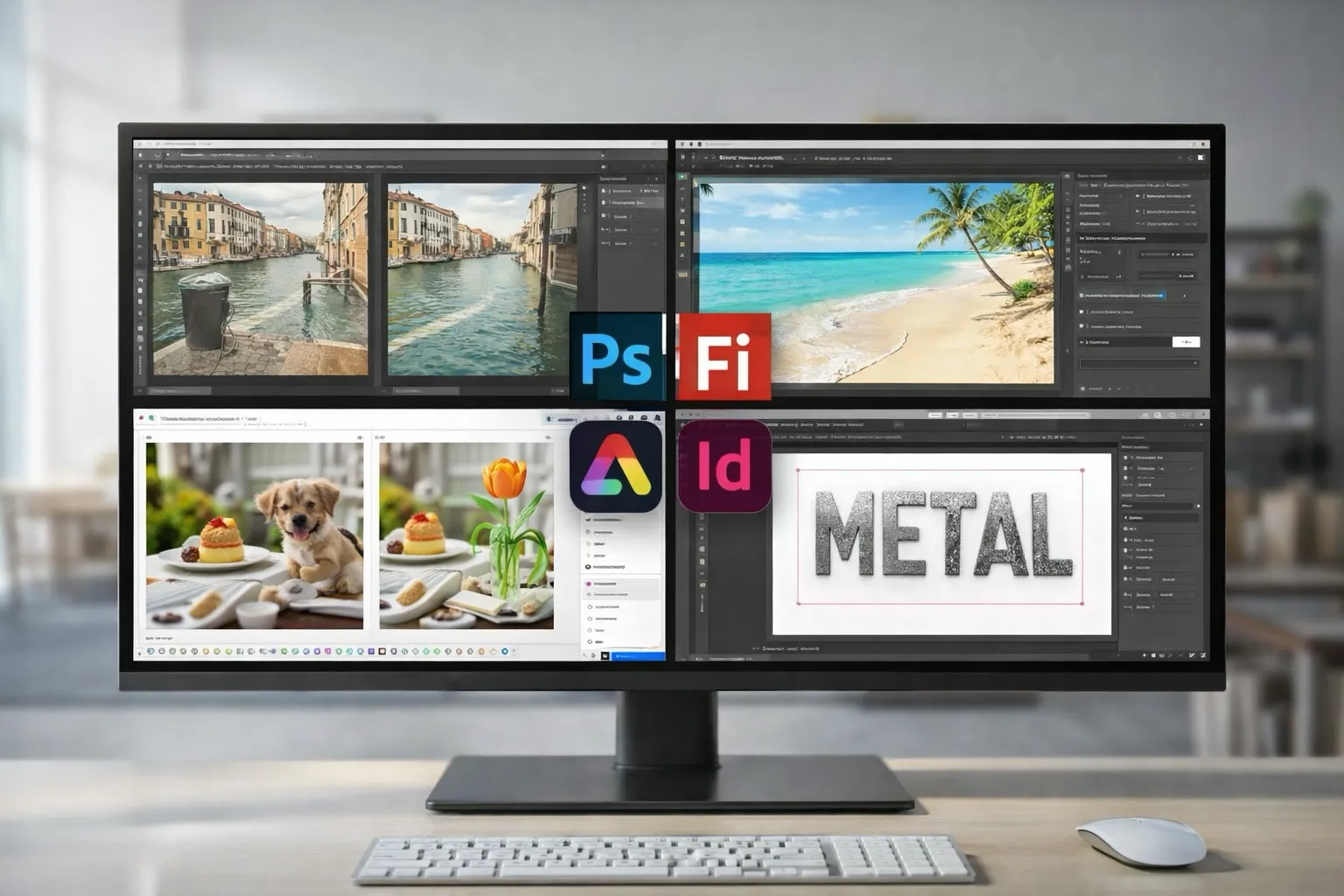
Adobe Generative Fill is an AI-powered Adobe feature that works best in different products depending on the job. Photoshop is the strongest option for detailed photo edits. Photoshop on the web is better for quick browser fixes. Firefly offers a more guided way to change images, Adobe Express is useful for fast object insert-or-replace edits, and InDesign is built more for text and shape effects than regular photo cleanup.
Key Takeaways
- Generative Fill is an AI feature, but it does not work the same way in every Adobe product.
- Photoshop is the best fit for detailed image editing and tighter control.
- Photoshop on the web is useful for quick cleanup and background fixes in a browser.
- Firefly and Adobe Express are easier starting points for faster image changes.
- InDesign uses Generative Fill (beta) for text and shape effects, not regular photo editing.
What is Adobe Generative Fill?
Adobe Generative Fill is an AI feature that lets you change selected parts of an image or design with a text prompt. You choose the area you want to edit, then Adobe’s AI generates new content for that space. Depending on the product, it can add, remove, replace, or extend image content, or apply effects inside text and shapes.
The name stays the same across products, but the experience does not. In Photoshop, Generative Fill feels like a photo-editing tool. In InDesign, it feels more like a design feature. That difference matters more than most people think.¹²³
Where should you start with Adobe Generative Fill?
If you want the short version, start here:
- Choose Photoshop if you want the image to look realistic.
- Choose Firefly if Photoshop feels like too much and you want a more guided workflow.
- Use Photoshop on the web when you need a quick edit in a browser.
- Use Adobe Express for simple object insert-or-replace tasks in a lighter editor.
- Use InDesign only when your focus is text, shapes, or layout design.
That one choice can save a lot of wasted time. Many people jump between Adobe apps expecting the same workflow everywhere. That is usually where frustration starts.
Which Adobe products support Generative Fill and where does it work best?
| Product | Where Generative Fill works best | Best for |
| Photoshop | Detailed image editing | Removing objects, adding content, extending scenes |
| Photoshop on the web | Quick browser-based edits | Fast fixes, simple cleanup, background changes |
| Firefly | Guided image editing | Adding, removing, replacing, or expanding image content |
| Adobe Express | Fast everyday edits | Inserting or replacing objects in simple workflows |
| InDesign (beta) | Text and shape effects | Posters, covers, display text, layout visuals |
If you only remember one thing, make it this: Photoshop is the main choice for realism, Firefly and Express are easier for quicker edits, and InDesign is the one to use for layout-driven design work.
How do you use Generative Fill in Photoshop?
Photoshop is where Generative Fill feels the most complete. Adobe says it can add, remove, or modify content using text prompts, and it works non-destructively so your original image stays intact.¹
This is the version to use when the final image really matters. You get more control over selections, layers, and cleanup after the generated result appears.
When should you use Generative Fill in Photoshop?
Use Photoshop when you want to:
- Remove a person or object
- Extend a background
- Add something new to a scene
- Try a few versions of an edit
- Keep more control over the final image
Real-world Photoshop example
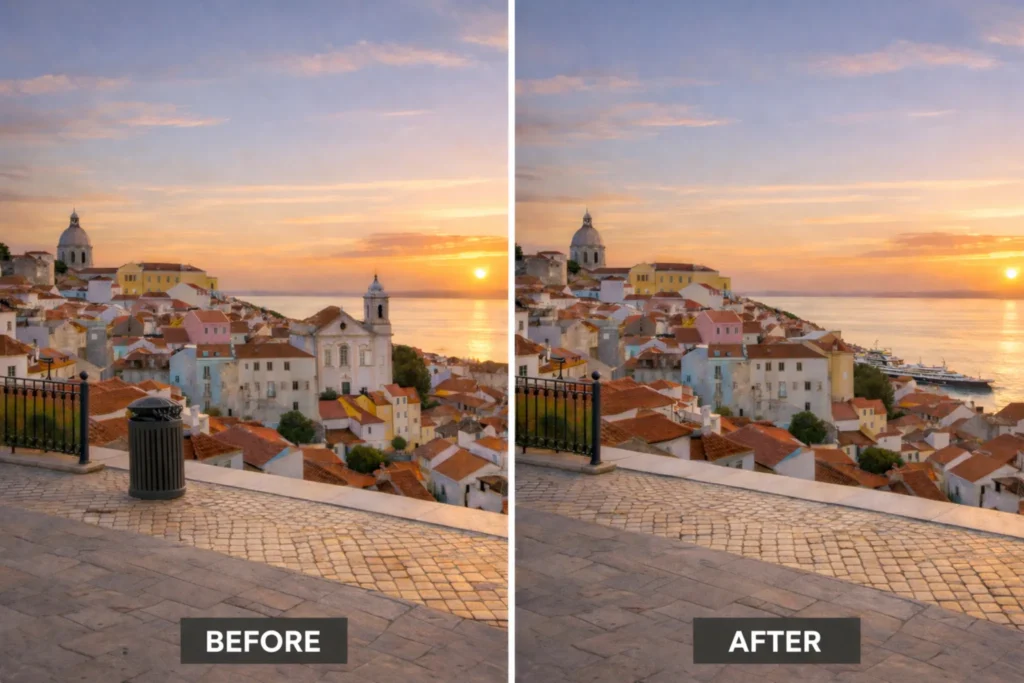
Say you have a travel photo with a trash can near the edge of the frame. Photoshop is the best place to remove it, rebuild the sidewalk, and keep the scene looking believable.¹
How do you start in Photoshop?
1. Open your image.
2. Select the area you want to change.
3. Click Generative Fill.
4. Enter a short prompt, or leave it blank if you want to remove something.¹
Short prompts usually work better than long ones. A simple request often gets you closer, faster.
Is Photoshop on the web good for Generative Fill?
Yes. Photoshop on the web makes sense when speed matters more than depth. Adobe says the web version supports Generative Fill and Generative Expand for adding elements, removing objects, and extending backgrounds.⁴
It is a strong option for lighter work. You can jump in, make the change, and move on without opening the full desktop app.
When should you use Photoshop on the web?
- You want a quick fix
- You are working in a browser
- You want to test an edit before doing more later
- You do not need the full desktop setup
When does Firefly make more sense for Generative Fill?
Firefly makes more sense when you want a simpler, more guided editing flow. Adobe’s current help says Generative Fill in Firefly can add or replace objects, and Adobe’s learning content also describes using it to remove, add, and expand image content.²
That makes Firefly a nice middle ground. It is less involved than Photoshop, but still flexible enough for many common edits.
Start with Firefly if you want:
- A simpler editing experience
- Fast concept changes
- Easy object swaps
- Quick remove, add, or expand tasks
Real-world Firefly example
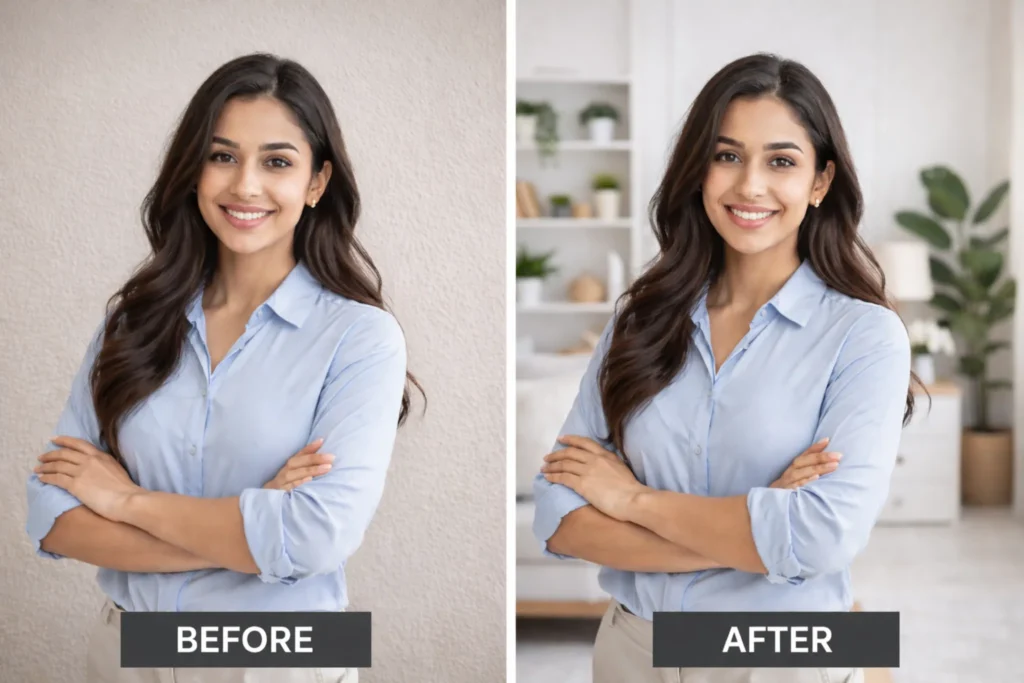
If you want to swap a dull wall background for something cleaner or more styled, Firefly is often easier to start with than Photoshop because the workflow feels more guided.
Where does Adobe Express fit?
Adobe Express is the lighter, faster option for simple object changes. Adobe documents Generative Fill in Express for inserting or replacing objects in an image from within the Express editor.⁵
This is the version many people will like for everyday use. The goal is not deep editing. It is getting in, making the change, and getting back out.
Use Adobe Express when you want:
- A faster workflow
- Simple insert-or-replace edits
- Quick visuals for posts, flyers, or promos
- Less setup before you begin
How is Generative Fill different in InDesign?
InDesign uses Generative Fill in a very different way. Adobe says Generative Fill (beta) in InDesign applies effects to text and shapes. It is not the place to start for normal photo cleanup. Adobe also says text must be single-line, under 25 characters, and at least 48 pt.³
In other words, this is about design treatment, not image repair.
When is InDesign the better fit?
Use it for:
- Cover text
- Poster headlines
- Shape fills
- Display-focused layout work
Real-world InDesign example
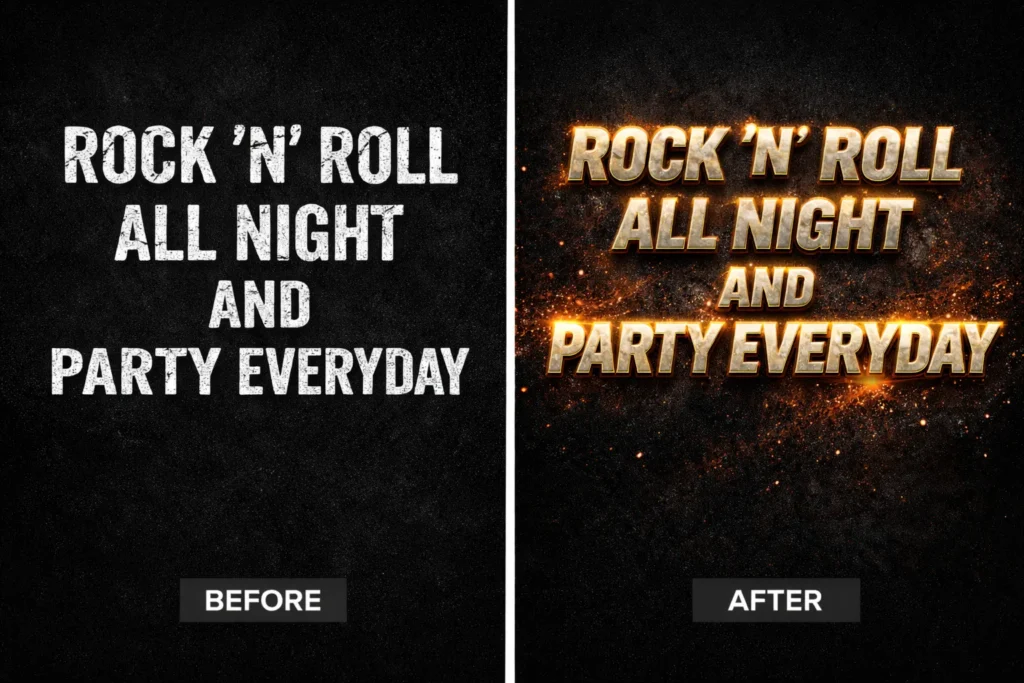
If you are building a poster and want a headline filled with a textured metallic effect, InDesign is the better fit than Photoshop.
What most people get wrong about Generative Fill
A few mistakes show up again and again:
- People assume every Adobe app uses Generative Fill the same way
- They write long prompts when short prompts often work better
- They expect the first result to be the final one
- They use Firefly or Express for edits that really need Photoshop
- They try InDesign for photo cleanup even though it is aimed at text and shapes³
Picking the right product first solves a lot of that. It also makes the learning curve feel much less annoying.
What is the easiest way to get better results with Generative Fill?
These habits usually help the most:
- Keep your selection tight
- Ask for one thing at a time
- Use short prompts
- Generate a few versions before choosing
- Use Photoshop when realism matters most
One more thing: know when to stop. If the result is already close, a quick manual adjustment is often faster than generating version after version.
The bottom line on Adobe Generative Fill
Use Photoshop when the edit needs to look real.
Use Photoshop on the web when you want speed in a browser.
Use Firefly when you want a simpler guided workflow.
Use Adobe Express when you want a quick object insert-or-replace edit.
Use InDesign when your focus is text, shapes, or layouts.
Frequently Asked Questions
Is Adobe Generative Fill available in all Adobe products?
No. Adobe’s current public documentation clearly shows Generative Fill in Photoshop, Photoshop on the web, Firefly, Adobe Express, and InDesign beta, with different uses depending on the app.¹²³⁴⁵
Should beginners start with Photoshop or Firefly?
Start with Photoshop if you want more control and better realism. Start with Firefly if you want a simpler guided experience.
Can Adobe Generative Fill remove objects?
Yes. Adobe documents object removal in Photoshop, Photoshop on the web, and Firefly.¹²⁴
Which Adobe app is easiest for quick edits?
Adobe Express and Photoshop on the web are the easiest for quick edits, especially when you do not need a full desktop workflow.
Citations
- Adobe. “Edit Images with Generative Fill.” Adobe Help Center, 23 Feb. 2026.
- Adobe. “Use Generative Fill.” Adobe Help Center, 10 Mar. 2026.
- Adobe. “Apply Effects to Text and Shapes Using Generative Fill (beta).” Adobe Help Center, 23 Mar. 2026.
- Adobe. “Free Online Photoshop – Official Photoshop Web.” Adobe.
- Adobe. “Insert or Replace Objects with Generative AI.” Adobe Help Center, 19 Mar. 2026.