
To use Microsoft Copilot at work without looking lost, first practice how to use Microsoft Copilot on your own, then bring it into meetings for simple tasks like summaries and drafts. Speak your plan out loud, review Copilot’s output quickly, and share only what you’ve checked.
Key Takeaways
- You don’t need deep technical skills to look confident using Microsoft Copilot at work. A short routine and a few go-to prompts are enough.
- Start with inbox clean-up, meeting recaps, and first drafts in Word, PowerPoint, and Teams before you touch high-stakes work.
- Narrate what you’re asking Copilot to do so your team understands your process instead of wondering what you’re doing.
- Always review Copilot’s output before sharing, especially anything client-facing or sensitive.
- Research from Microsoft and others shows most knowledge workers already use AI, but many don’t have training, which is why learning how to use Microsoft Copilot carefully is a real advantage.
What is Microsoft Copilot at work, in plain language?
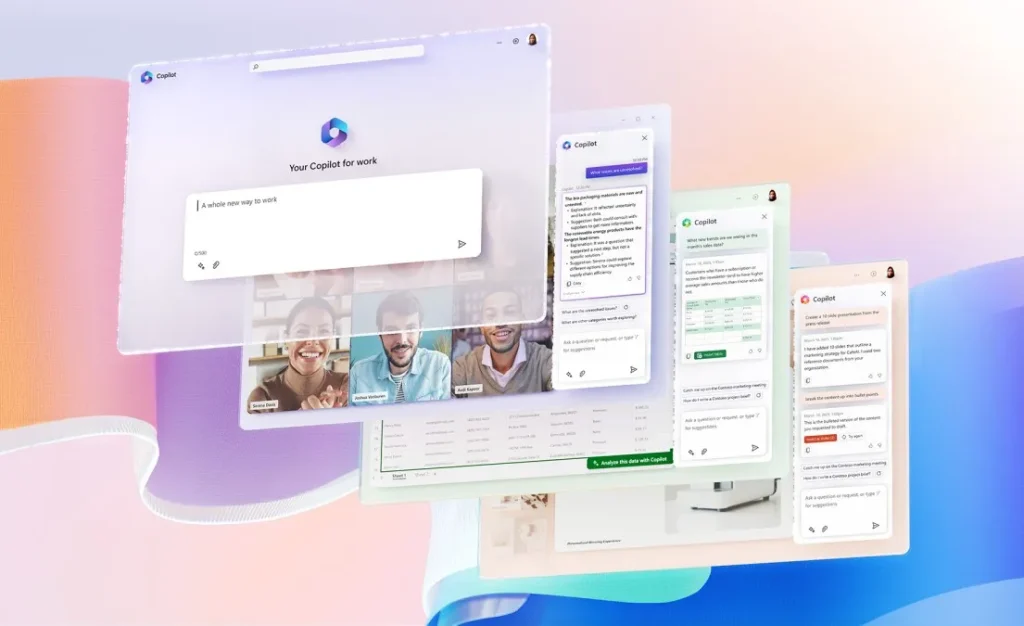
Microsoft 365 Copilot is an AI assistant built into apps like Word, Excel, PowerPoint, Outlook, Teams, and others in Microsoft 365. It connects to your work emails, chats, and files (through Microsoft Graph) to help you get tasks done inside the tools you already use.¹’²
You can ask it in everyday language to summarize documents, draft emails or reports, outline slide decks, or pull key points from chats and meetings, without leaving the app you’re in.¹
Microsoft states that Copilot follows your existing permissions and uses the same enterprise security, compliance, and privacy controls as the rest of Microsoft 365, including encryption and tenant-level protections.³
The 2024 Work Trend Index from Microsoft reports that use of generative AI at work nearly doubled within six months, with roughly three out of four knowledge workers already using it.⁴ A Lifewire summary of recent survey data adds that about 74% of employees use AI tools at work, but only 33% received formal training.⁵
This is why learning how to use Microsoft Copilot with intention and clear habits matters so much.
How to use Microsoft Copilot at work without looking lost: a simple 5-step plan
Step 1: Practice how to use Microsoft Copilot in private first
Before you open Copilot in a live meeting, give yourself 30 minutes to experiment alone.
The goal is to see how to use Microsoft Copilot on tasks you already understand, so you can spot when it gets something wrong.
Try this mini-practice session:
1. Outlook – Ask Copilot to summarize a long email thread and suggest a short reply with next steps.
2. Teams – Use Copilot to recap a recent meeting recording and list decisions and owners.
3. Word – Ask it to turn your notes into a one-page summary you can polish.
Once you’ve done this two or three times, you’ll feel less like you’re “trying something new” and more like you’re running a normal workflow with extra help.
Step 2: Start with “safe” tasks so Copilot doesn’t embarrass you
You don’t have to test how to use Microsoft Copilot on your hardest project.
Begin with low-risk, repeatable tasks where a rough draft is fine and errors are easy to catch.
Good starter places for how to use Microsoft Copilot:
- Catching up on long email threads and Teams chats
- Summarizing meetings you missed or joined late
- Drafting first versions of internal emails or status updates
- Turning rough notes into simple action lists or outlines
Places to be careful:
- Legal, medical, or compliance-heavy documents
- Highly confidential projects, unless IT has clearly approved that use
- Any situation where even small mistakes could cause real damage
If you must use Copilot in sensitive work, keep it to structuring, brainstorming, or editing, and do a very careful review.
Step 3: Narrate what you’re doing so your team doesn’t think you’re guessing
Silence plus typing can look like confusion. Instead, calmly narrate how you’re using Microsoft Copilot during meetings or working sessions.
Simple phrases you can use:
- “I’m going to ask Copilot to summarize this discussion and list action items.”
- “Let me have Copilot turn this outline into a draft email, then I’ll tweak it.”
- “I’ll use Copilot to sketch the slide structure and we’ll adjust the details together.”
When you say how to use Microsoft Copilot out loud, your team sees a clear plan: you’re still driving, and Copilot is just part of your process.
Step 4: Always review Copilot’s work before sharing
Copilot is fast, but it’s not perfect. To look confident, never show raw Copilot output without at least a quick scan.
Use this 3-question check every time you use Microsoft Copilot:
- Does this sound like us?
Is the tone right for your team, client, or leadership?
- Are details correct?
Check dates, names, numbers, and any promises.
- Is any sensitive info exposed?
Remove anything that shouldn’t be in a recap, deck, or email.
If something seems off, just say, “This Copilot draft is close, but I’m going to adjust a few things,” and make your edits. That shows judgment, not confusion.
Step 5: Create simple team norms for how to use Microsoft Copilot
Most people want to use AI at work but don’t know what’s acceptable.⁴’⁵ You can look extremely prepared by helping your team set a few ground rules for how to use Microsoft Copilot.
Questions to guide that conversation:
- In which apps and tasks is Copilot always okay? (e.g., summaries, drafts, internal notes)
- What absolutely must be reviewed by a human before leaving the company?
- How should we label Copilot-generated drafts? (for example, “Copilot draft – please review”)
- Who can your team ask if they’re unsure how to use Microsoft Copilot on a specific project?
Simple norms keep everyone aligned and keep Copilot from feeling like a secret side tool only a few people understand.
Where should you start using Microsoft Copilot during a normal workday?
Microsoft 365 Copilot is designed to sit inside the tools you already use, so the easiest way to show you know how to use Microsoft Copilot is to plug it into your daily routine.¹’²
Here’s a quick table of confidence-building moves:
| App | Situation | What to ask Copilot | How it makes you look |
| Outlook | Inbox is overflowing | “Summarize this thread and draft a short reply with next steps.”² | Calm and in control |
| Teams | You joined a meeting late | “Recap what I missed and list decisions and owners.”² | Engaged and on top of it |
| Word | You owe a one-pager | “Turn these notes into a one-page summary with clear headings.”¹ | Clear and organized |
| PowerPoint | You need slides fast | “Create a slide outline from this document with 6–8 key slides.”¹ | Structured and prepared |
| Excel | You’re staring at messy data | “Explain what this data shows and suggest 3 chart ideas.”¹ | Analytical and thoughtful |
Use two or three of these every day and you’ll quickly feel how to use Microsoft Copilot as part of your rhythm instead of a one-off experiment.
How to write prompts for Microsoft Copilot without freezing up
Use a simple 3-part prompt formula
You don’t need special jargon to know how to use Microsoft Copilot well.
Use this plain-language formula instead:
1. Context – What is this? (email thread, meeting notes, report, spreadsheet)
2. Goal – What do you want? (summary, outline, reply, options, checklist)
3. Tone and length – How should it sound, and how long?
Example:
“This is a client status email thread. Summarize key updates, flag open risks, and draft a short reply in a calm, confident tone.”
That’s enough structure for Copilot to do useful work without you needing to overthink every word.
Copy-paste prompt examples for common work tasks
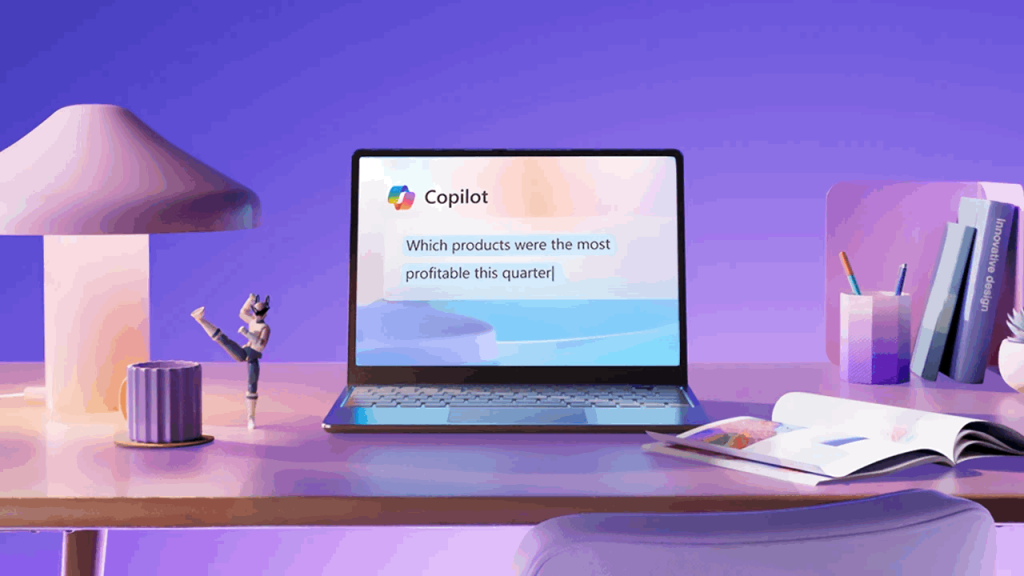
Here are ready-to-use prompts that make it easier to learn how to use Microsoft Copilot in daily work:
Weekly recap in Teams
“Summarize my Teams meetings and chats from this week and list 5 action items I shouldn’t ignore.”
Meeting follow-up in Outlook
“Using this meeting transcript, draft a follow-up email that lists decisions, owners, and deadlines in a professional but friendly tone.”
First draft of a report in Word
“Turn these bullet notes into a one-page report with an intro, 3–4 clear sections, and a short conclusion.”
Slide outline in PowerPoint
“Create a slide deck outline from this document with 7–9 slides, including a title slide and a final slide with next steps.”
Use these as building blocks. As you get comfortable with how to use Microsoft Copilot, you can adjust details like tone, length, and audience.
Is Microsoft Copilot safe to use with work data?

Worrying about data safety is normal, especially when you’re deciding how to use Microsoft Copilot with real projects.
The good news: Microsoft says Copilot uses the same enterprise security and privacy controls as the rest of Microsoft 365, including encryption at rest and in transit, data isolation between tenants, and existing permission models.³
A few practical safety tips:
- Treat Copilot like any other work tool that touches company data.
- Follow your organization’s policies on sensitive or regulated information.
- When in doubt about how to use Microsoft Copilot in a specific team or project, ask IT or your manager before you proceed.
- Remember that even with strong security, you are still responsible for what you send, share, or publish.
- Security features are important, but your judgment is what keeps trust high inside your team.
How to talk about Microsoft Copilot with your manager and team
Many managers know they should be paying attention to AI, but they may not have a clear plan yet.⁴’⁵ That’s your chance to show you understand not just how to use Microsoft Copilot, but how to use it responsibly.
Ways to start the conversation:
- “I’ve been testing how to use Microsoft Copilot on my own tasks. Could we talk about where it makes sense for our team?”
- “Would it help if I did a short walk-through of how I use Copilot for email, meetings, and reports?”
- “Can we set basic rules for when Copilot is allowed and what must be reviewed by a person first?”
This frames you as someone who understands both the tool and the bigger picture: productivity, quality, and trust.
Frequently Asked Questions
How do I start using Microsoft Copilot if my company just turned it on?
Begin with low-risk tasks. Try how to use Microsoft Copilot on email summaries, meeting recaps, and first drafts of internal documents. Once you’re comfortable reviewing its work, bring it into meetings and higher-visibility projects.
How can I use Microsoft Copilot in meetings without looking unprepared?
Decide ahead of time where how to use Microsoft Copilot will help: note-taking, action items, or quick summaries. Say what you’re asking Copilot to do, check the result, then share only after you’ve corrected anything that looks off.
What should I do if Microsoft Copilot gives wrong or strange answers?
Treat Copilot as a fast first draft. If something feels wrong, say, “This Copilot draft isn’t quite right; I’m going to fix it,” then edit. Learning how to use Microsoft Copilot includes learning when to ignore or rewrite its output.
Can I use Microsoft Copilot with client work?
That depends on your company’s policies. Ask your manager or IT team where how to use Microsoft Copilot is allowed for client-facing documents, contracts, or pricing. Even if it’s allowed, always do a careful human review before sending anything outside the company.
How often should I use Microsoft Copilot during the week?
Aim for a short daily routine, not rare “big” moments. For example, use how to use Microsoft Copilot every morning to scan your inbox, recap yesterday’s meetings, and plan your day. Regular, small uses build skill and confidence much faster.
Citations
- “What Is Microsoft 365 Copilot?” Microsoft Learn, Microsoft, 2025.
- “Microsoft 365 Copilot – Service Descriptions.” Microsoft Learn, Microsoft, 2025.
- “Enterprise Data Protection in Microsoft 365 Copilot and Copilot Chat.” Microsoft Learn, Microsoft, 29 Aug. 2025.
- “AI at Work Is Here. Now Comes the Hard Part.” Microsoft Work Trend Index, Microsoft, 8 May 2024.
- “74% Use AI on the Job. Only 33% Know What They’re Doing.” Lifewire, Dotdash Meredith, 2025.