Key takeaways
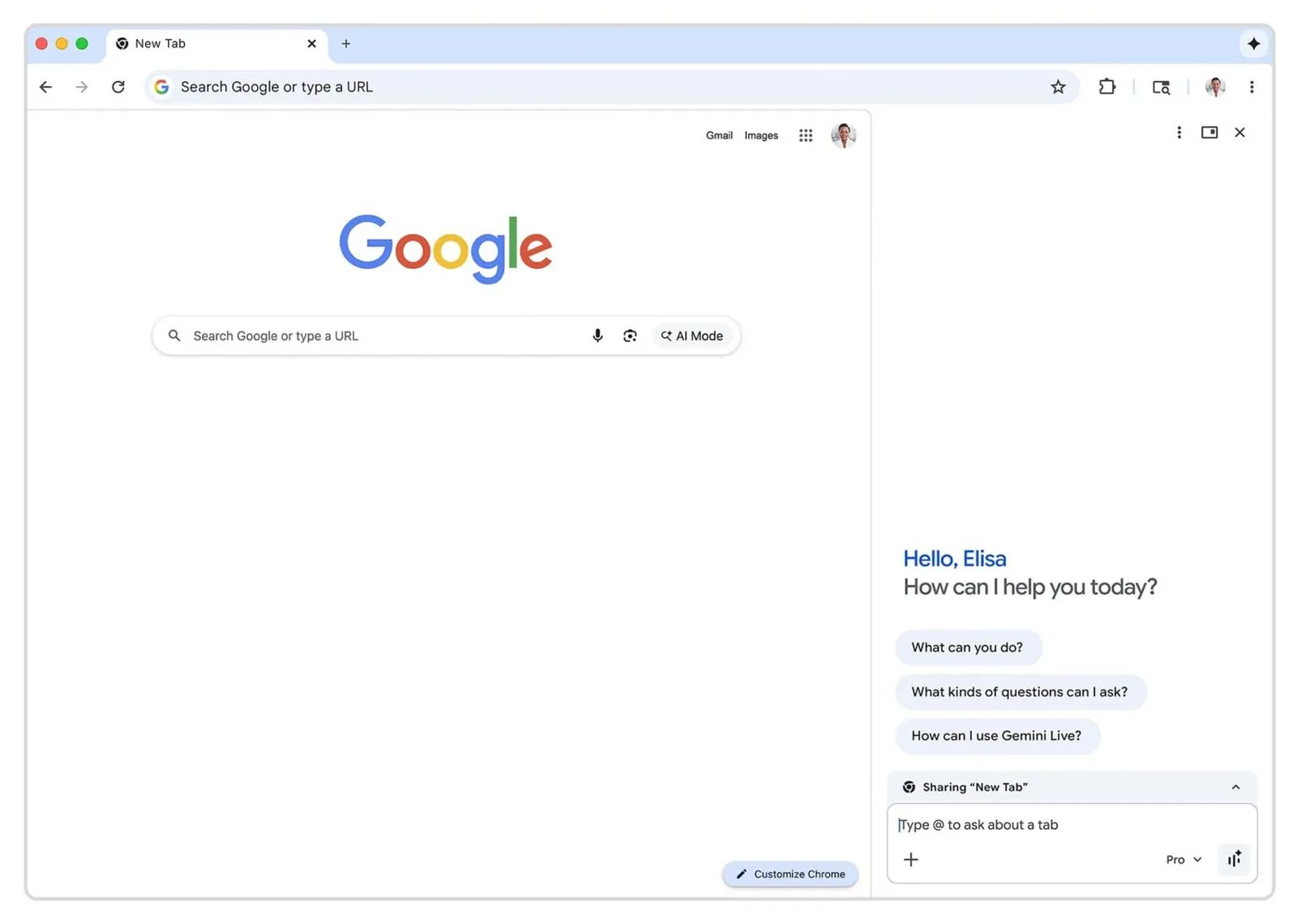
- We can keep help visible while we browse, because Gemini now lives in a gemini side panel instead of a pop-up window.
- We can opt in, decide what pages (tabs) get shared, and stop sharing at any time—so we stay in charge of what’s used for answers.
- “Auto browse” can handle multi-step web chores, but it’s rolling out in preview in the U.S. and is tied to paid plans (AI Pro / AI Ultra).
- For sensitive actions (like purchases), Chrome is designed to pause and ask for confirmation, and Google describes new defenses built for this kind of feature.
Using the gemini side panel without losing your place
The biggest change is simple: instead of a chat bubble floating over our work, Google Gemini is designed to sit in a gemini side panel. That means we can keep a main tab open—an email, a checkout page, a travel plan—and still ask for help without constantly switching windows.
This “always there when we want it” approach matters because browsing is rarely one clean task. We jump between tabs, compare options, and try to remember what we saw five minutes ago. The gemini side panel is built around that reality: it’s meant to support the way we already browse, instead of forcing us into a separate experience.1
What we can do in the gemini side panel day to day
Once we open Gemini in Chrome, we’re prompted to opt in the first time. After that, we can type a request and (by default) Gemini uses content from the current tab to respond. This is one of the most important details to understand: answers aren’t coming from nowhere—they’re often based on what we’re currently viewing.
Here are practical, non-technical ways the gemini side panel can help:
- Summarize the main points of an article we’re reading.
- Explain something confusing in different words (without us hunting for another source).
- Compare information across pages when we have multiple tabs open.
- Help us organize what we’re seeing into a short list or a quick plan (like “top three options and why”).
Sharing tabs (and un-sharing them)
Chrome is explicit about tab sharing: we can share the current tab, add other tabs (up to 10), and remove tabs whenever we want. We can also start a new chat, and Chrome notes that our current tab is shared by default—plus there’s a setting to turn that default behavior off if we prefer tighter control.2
This is where good habits matter. If we treat the gemini side panel like we treat screen sharing at work—only share what’s needed—we reduce surprises and keep things cleaner.
Connected Apps: when the gemini side panel can reference our Google tools
Google is also pushing “Connected Apps,” meaning the gemini side panel can work with services like Gmail, Calendar, YouTube, Maps, Google Shopping, and Google Flights—if we enable those connections in settings.1,2
In plain terms, this is about reducing the back-and-forth. Instead of us digging through an old email for event details and then cross-checking flights manually, the gemini side panel can pull relevant context and help draft the next step (like a message to coworkers about arrival time).
Just as important: Google frames this as opt-in, and Chrome Help spells out that we can manage which apps are connected (turn them on or off).2 If we’re only comfortable connecting one service (say, Calendar but not Gmail), that’s a reasonable way to start.
Auto browse: multi-step web chores, with guardrails
Auto-fill is old news—it can drop our address into a form. Auto browse is framed as the next step: letting Chrome handle a chain of actions across a website or even across several sites, like researching travel options or handling online paperwork.
Google describes auto browse as rolling out in preview in the U.S. for AI Pro and AI Ultra subscribers. 5 In other words, this is not “everyone gets it today.” It’s staged, and it’s tied to specific plan levels.
What auto browse is good for
From Google’s examples, the goal is to offload the repetitive parts of browsing:
- Comparing hotel and flight costs across different date options to find a better-priced window.
- Working through multi-step workflows like scheduling appointments or collecting documents.
- Helping with sign-in-required tasks if we grant permission to use Google Password Manager (and only when we allow it).
Where we still stay responsible
Chrome is designed to pause for confirmation on sensitive steps—Google specifically calls out things like purchases or posting on social media as moments where we’re brought back into the loop.1 That’s the right line: we can delegate the clicking and copying, but we don’t hand over the final “yes.”
We should think of auto browse as a capable intern: helpful with the busywork, but we still review before anything goes out the door.
Editing images on the web from the gemini side panel
Another notable addition is “Nano Banana,” which Google says can be used directly in Chrome so we can edit images without downloading and re-uploading them elsewhere.1 The important, everyday takeaway is that the work happens where we already are—in the gemini side panel—instead of sending us into a separate tool.
This matters for normal browsing moments:
- Tweaking an image for a presentation or a listing
- Cleaning up a visual for a doc
- Turning a rough chart or table into something easier to read (while staying in the same workflow)
Security and control by design: what we should expect
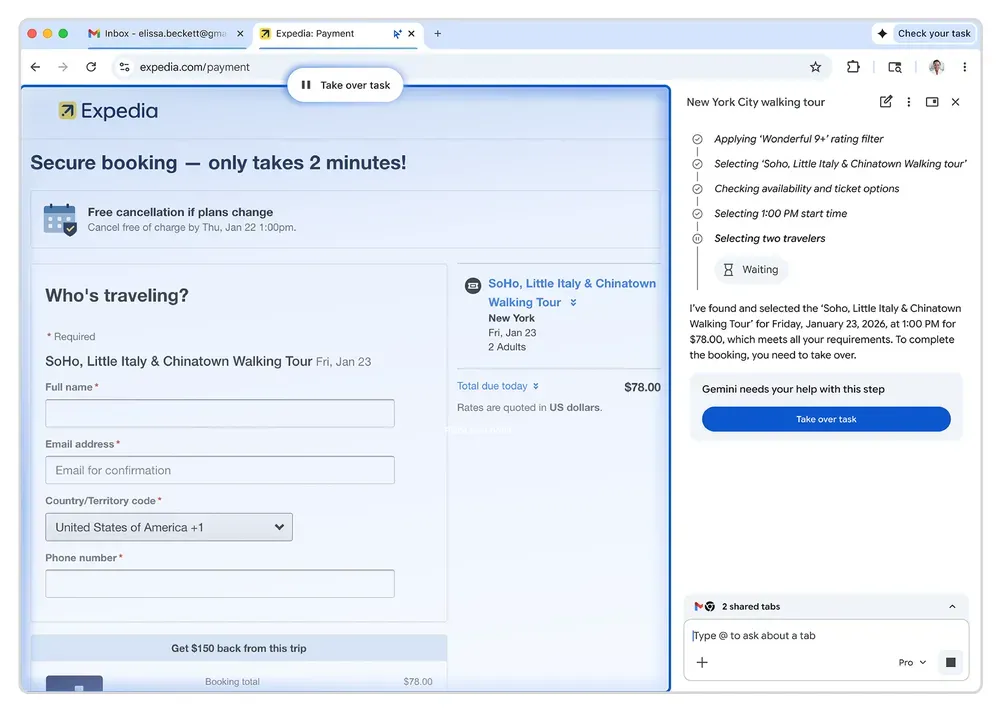
When a browser starts taking actions, safety stops being a nice-to-have. Google says it has introduced new defenses for these action-based features and designed auto browse to pause for confirmation on sensitive actions.1,4
Google’s security team describes layered protections aimed at preventing an automated browser flow from being tricked by hostile content on the web, plus additional checks and user confirmations at key steps.4 We don’t need to memorize the technical names to get the point: the system is built to slow down and ask us when the stakes go up.
Our practical checklist
To keep control (and keep surprises low), we can stick to a few basics:
1. Share fewer tabs. Add tabs only when they’re truly relevant, then remove them once we’re done.
2. Turn off automatic sharing if we prefer. Chrome Help notes we can change the default behavior for sharing the current tab when starting a new chat.
3. Be selective with Connected Apps. Turn on only what we need, and revisit those settings if our comfort level changes.
4. Treat confirmations as non-negotiable. If auto browse asks us to approve a purchase or post, we slow down and review—every time.
5. Use it only when we choose. Google’s own positioning is that Gemini in Chrome activates when we choose to use it, and we can manage activity settings as needed.
Why this change matters for regular browsing
The headline isn’t “a new model” or “a new feature name.” The headline is: our browser is shifting from a passive window into something that can help us handle the messy, real-world work of online life—without forcing us to leave what we’re doing.
If we approach the gemini side panel with the right mindset—opt in, share intentionally, confirm sensitive steps—then it can be a genuine time-saver. And if we’d rather keep things manual, Chrome’s design is still built around choice: we open it when we want it, and we close it when we don’t.3
Citations
- Tabriz, Parisa. “The New Era of Browsing: Putting Gemini to Work in Chrome.” The Keyword, Google, n.d.
- Google. “Use Gemini in Chrome – Computer.” Google Chrome Help, Google, n.d.
- Google. “Gemini in Chrome — AI Assistance, Right in Your Browser.” Gemini, Google, n.d.
- Parker, Nathan. “Architecting Security for Agentic Capabilities in Chrome.” Google Online Security Blog, Google, 8 Dec. 2025.
- Google. “Power Your Everyday with a Google AI Plan.” Google One, Google, n.d.